Link to Loom
https://loom.com/share/0700d55ce18c47598c62e16e9e6422ca
Here we explain how to connect ZoomInfo to Salesforce, export contacts and accounts, and use the Salesforce-side ZoomInfo tools to review and refresh data. It is designed to help team members complete setup and use the integration confidently without duplicating records.
Key Steps
1. Open ZoomInfo settings and start the Salesforce integration 0:10
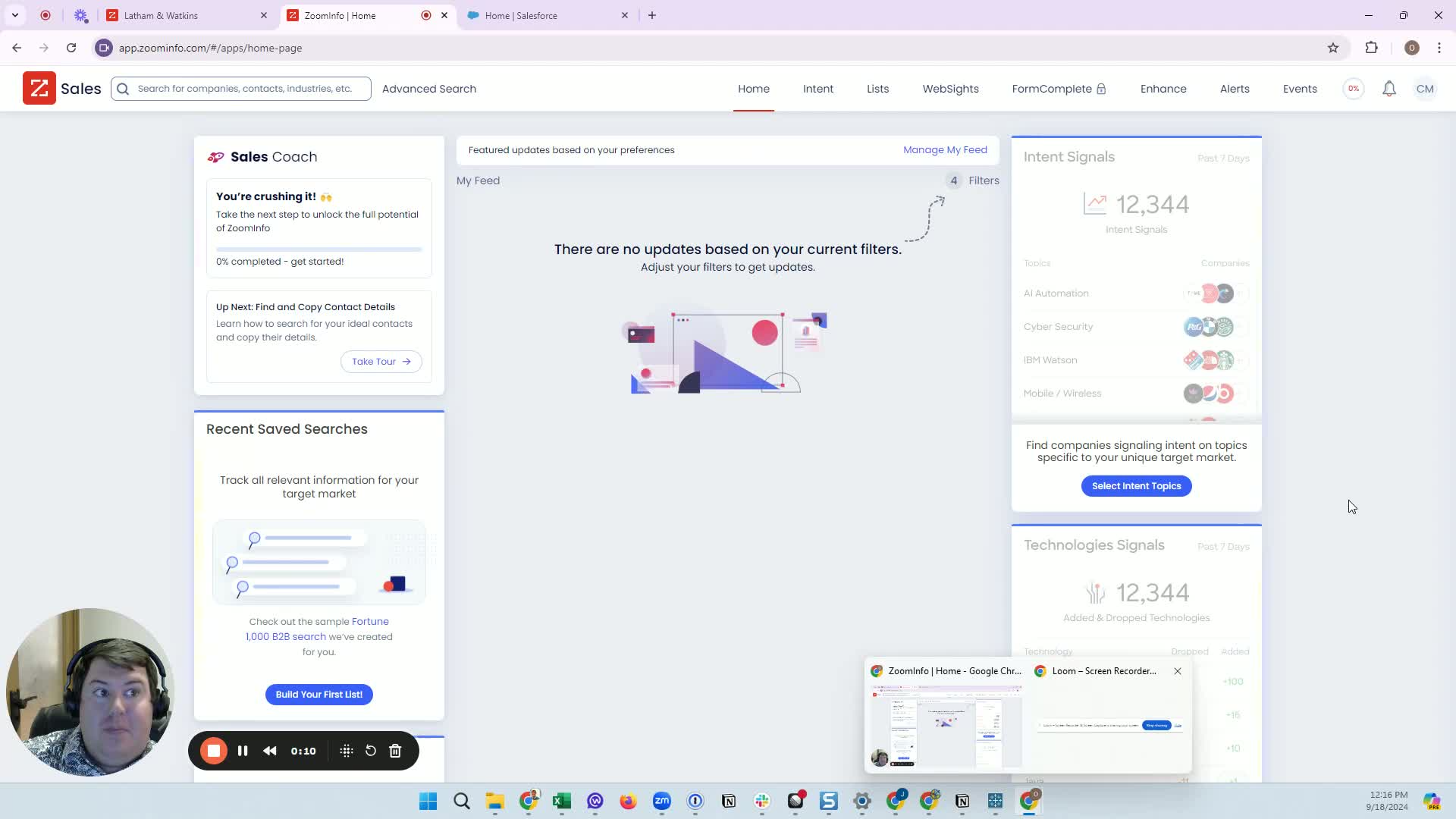
In ZoomInfo, go to the top-right corner and click your initials.
Select Settings.
Open Integrations instead of My Account.
Find Salesforce and click Connect.
2. Choose the correct Salesforce environment and authorize access 0:24
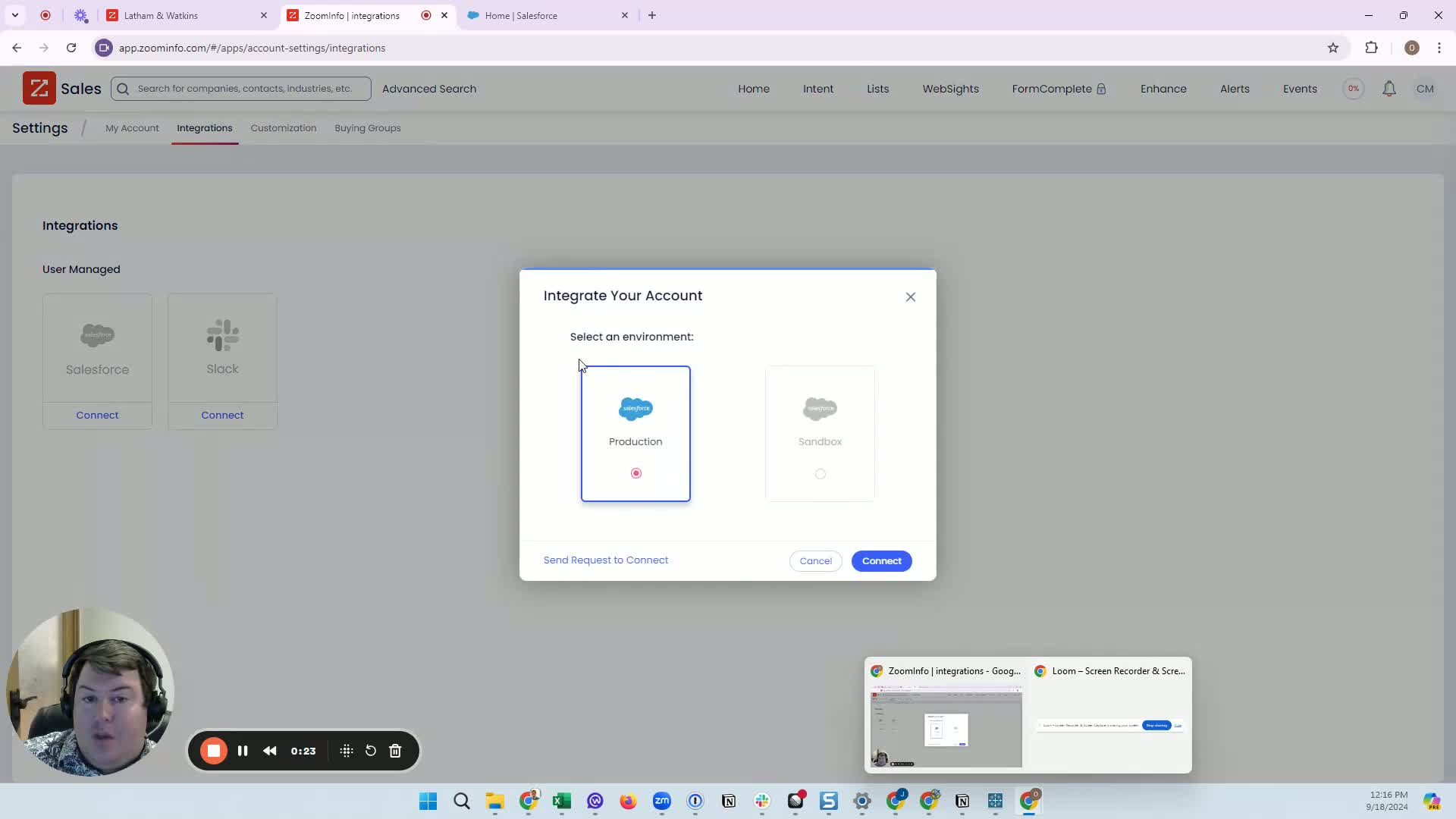
Confirm that Production is selected.
Click Connect.
If prompted, log in to Salesforce.
Click Allow on the Salesforce access prompt.
Wait for the success confirmation message before continuing.
3. Export a ZoomInfo contact into an existing Salesforce account 0:58
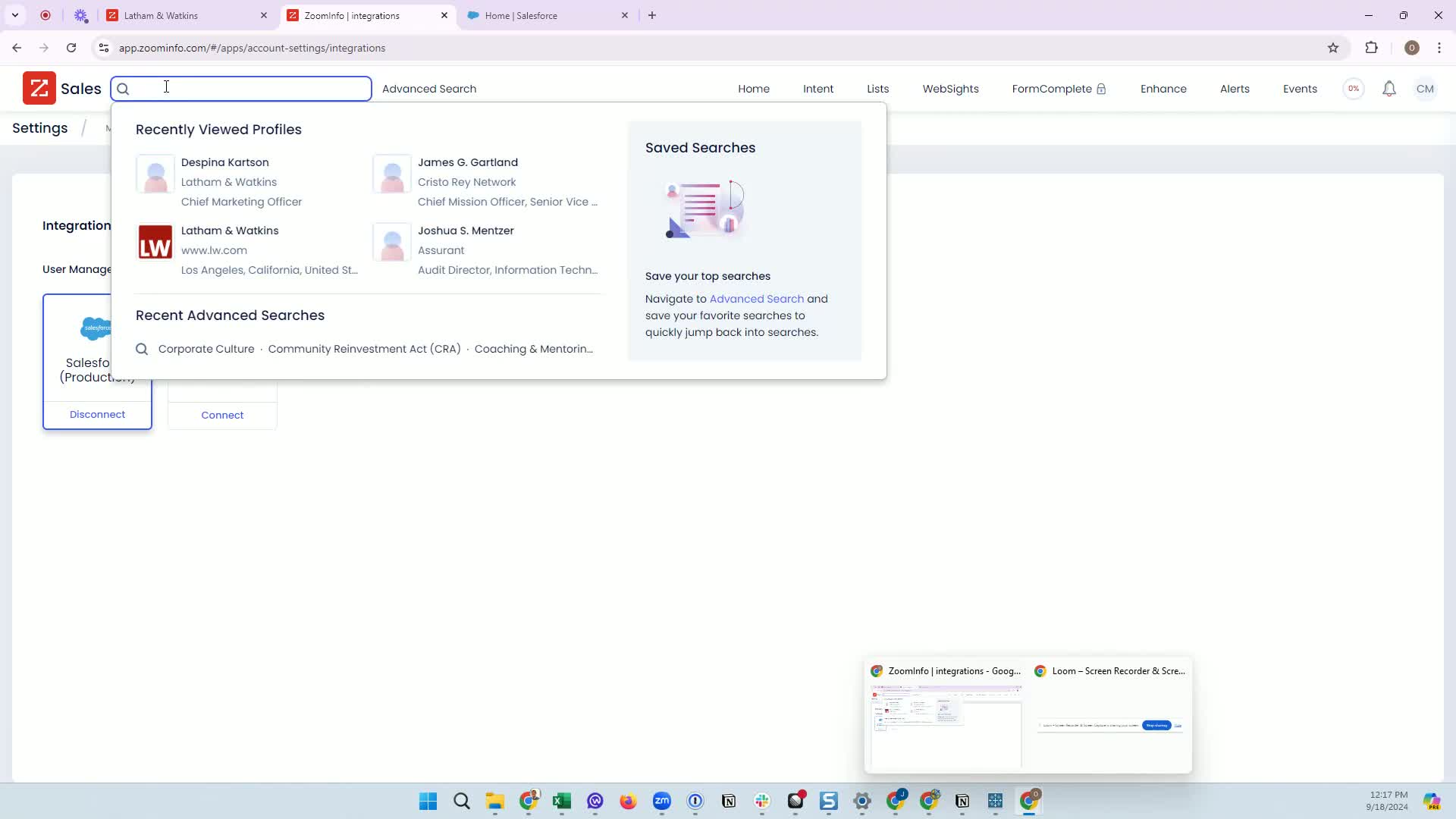
In ZoomInfo, search for the contact you want to export.
Verify whether the contact is associated with an existing Salesforce account.
Click the Export option and choose Salesforce.
Select Export this contact.
Wait for the confirmation that one contact was created.
Check Salesforce to confirm the contact appears with the expected details.
4. Handle duplicate contact matches before exporting 2:02
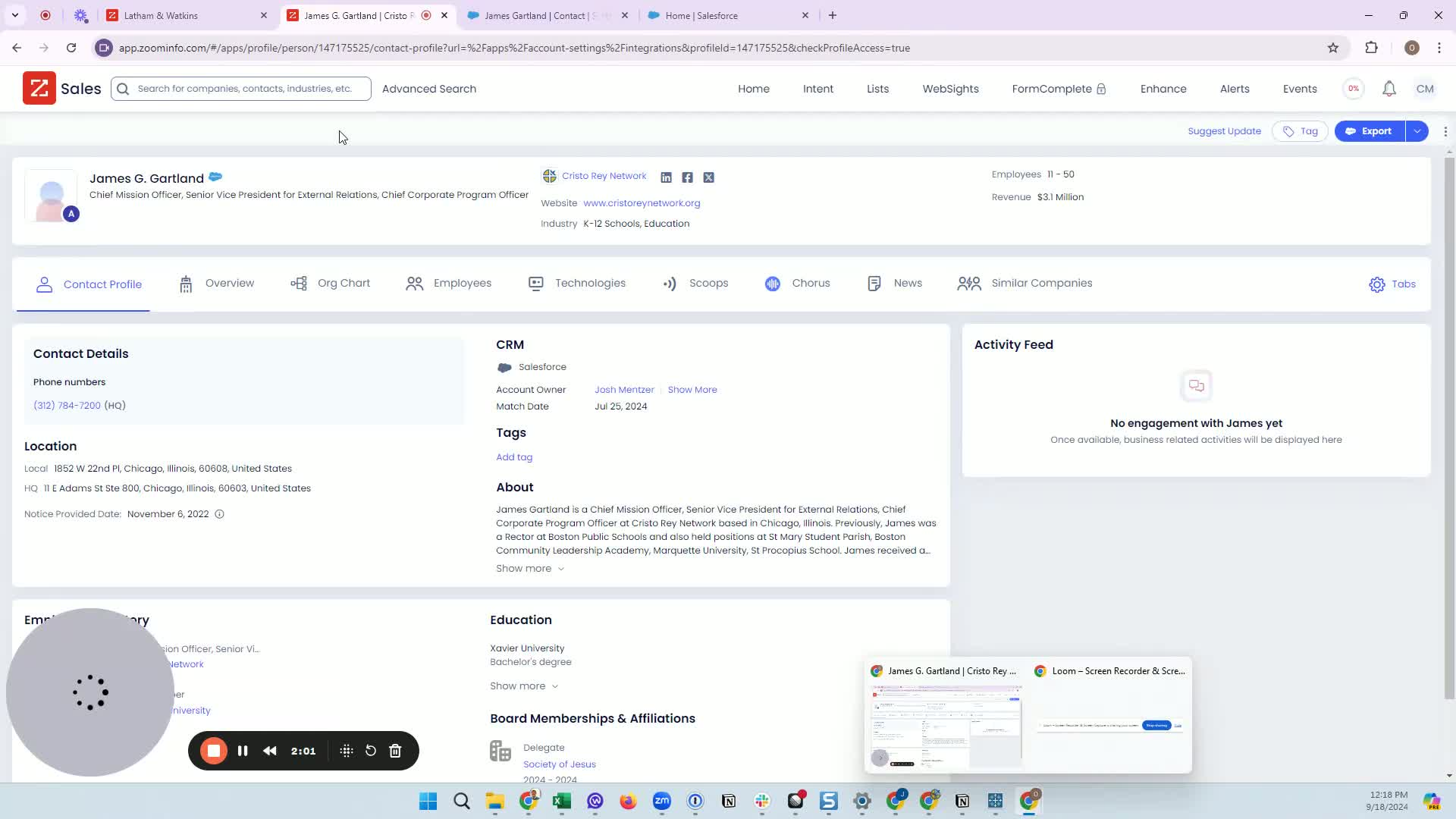
If ZoomInfo detects a possible duplicate, review the duplicate warning carefully.
Open the Salesforce record if you want to verify the existing contact.
Choose one of the available actions:
Go ahead anyway if you are certain the record should be created.
Update existing record if the contact already exists and needs new information.
If updating, review the fields and click Submit to apply the changes.
5. Export a new contact and create a new Salesforce account when needed 3:13
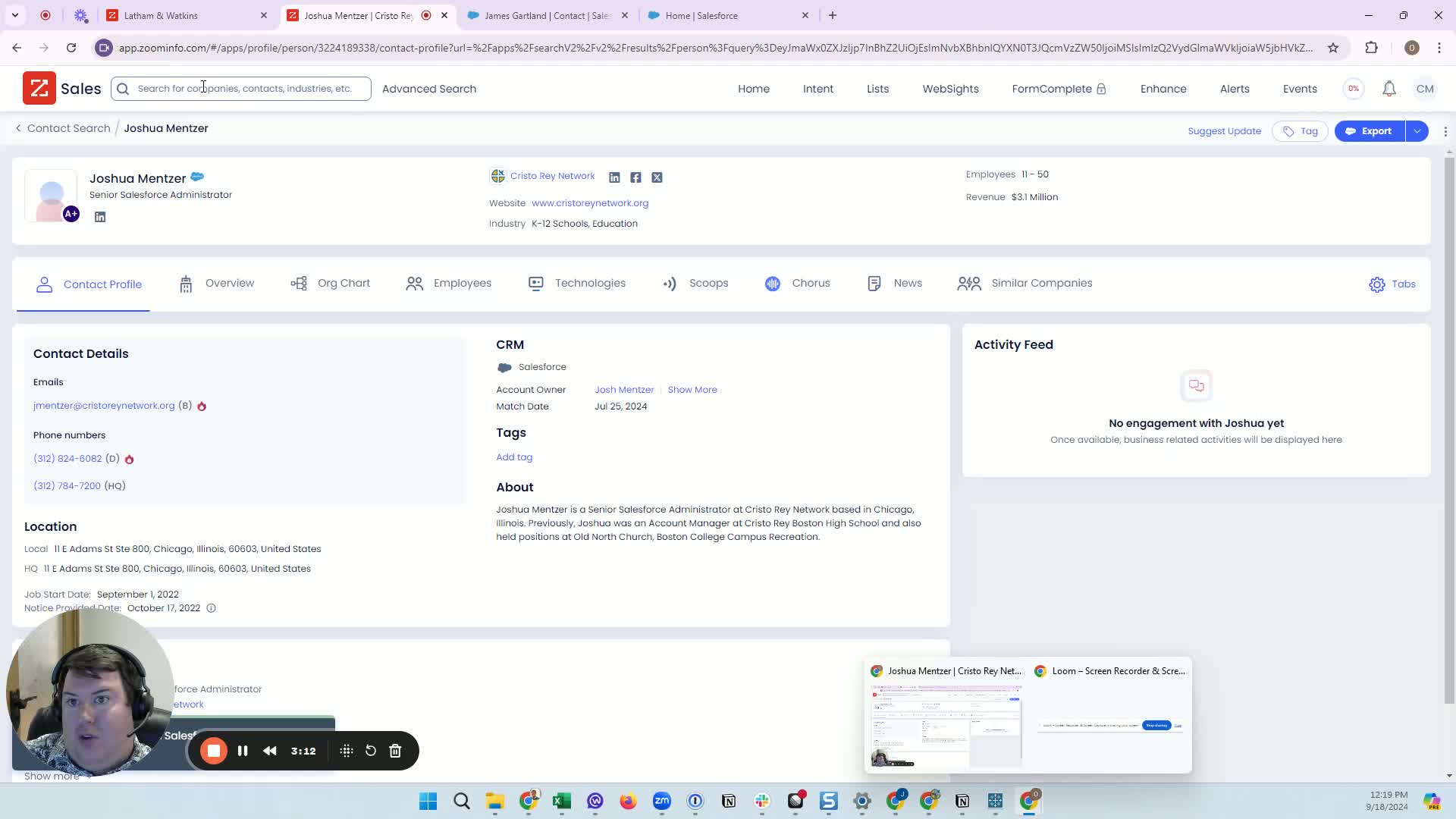
If the contact does not exist in Salesforce, click Export.
When prompted to associate the person with an account, review the account options.
If no matching account exists, allow ZoomInfo to create a new account.
If you believe the account already exists, use the search option in Salesforce to find it first.
Click Export to create both the contact and the new account if needed.
6. Review the synced record details in Salesforce 4:02
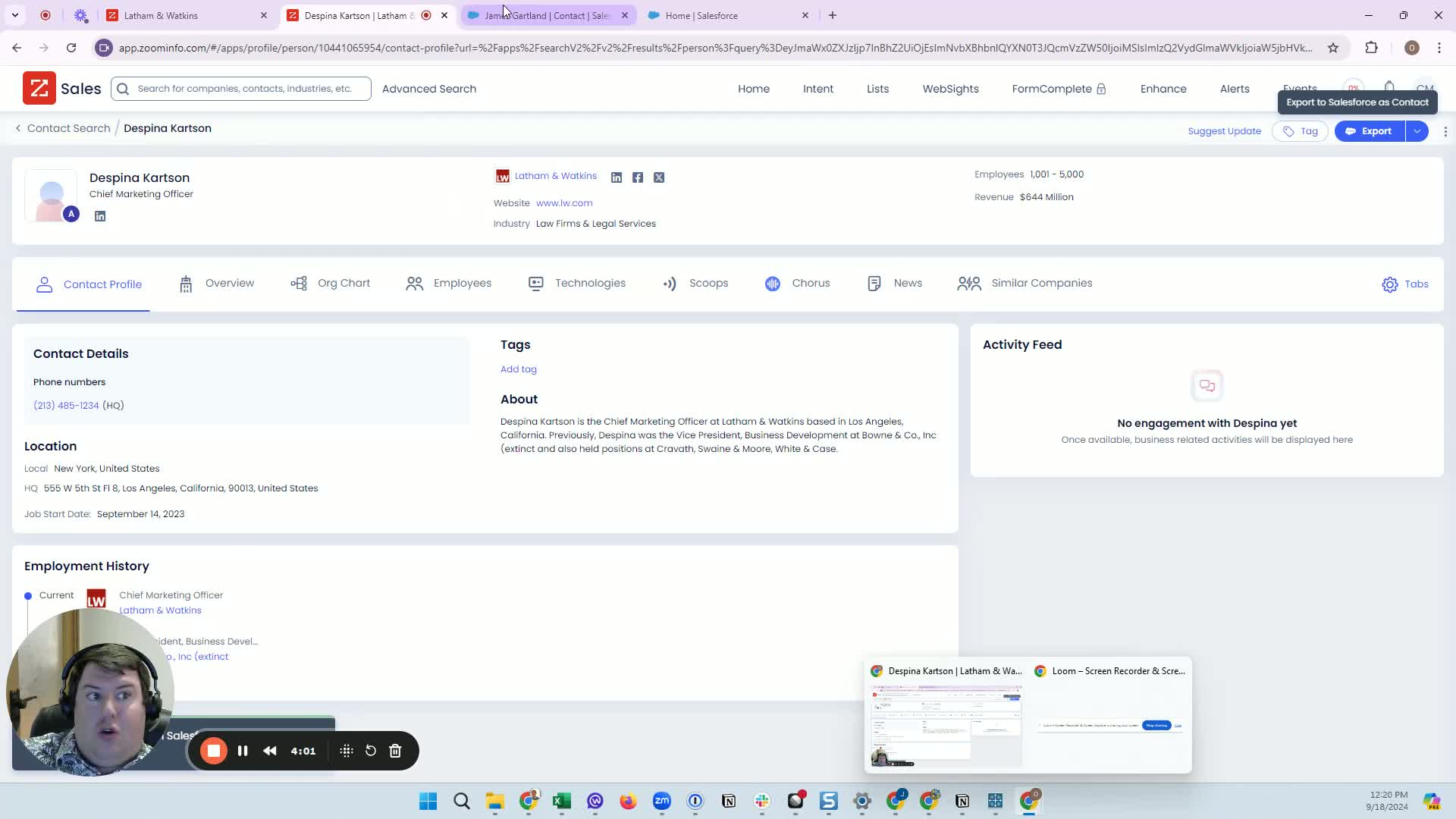
Open the newly created or updated record in Salesforce.
Review the information brought in from ZoomInfo, such as title and address.
Use the ZoomInfo record section to view additional related fields that are not automatically mapped.
Check the ZoomInfo component for more detailed person and company information.
7. Refresh contact data from within Salesforce 5:07
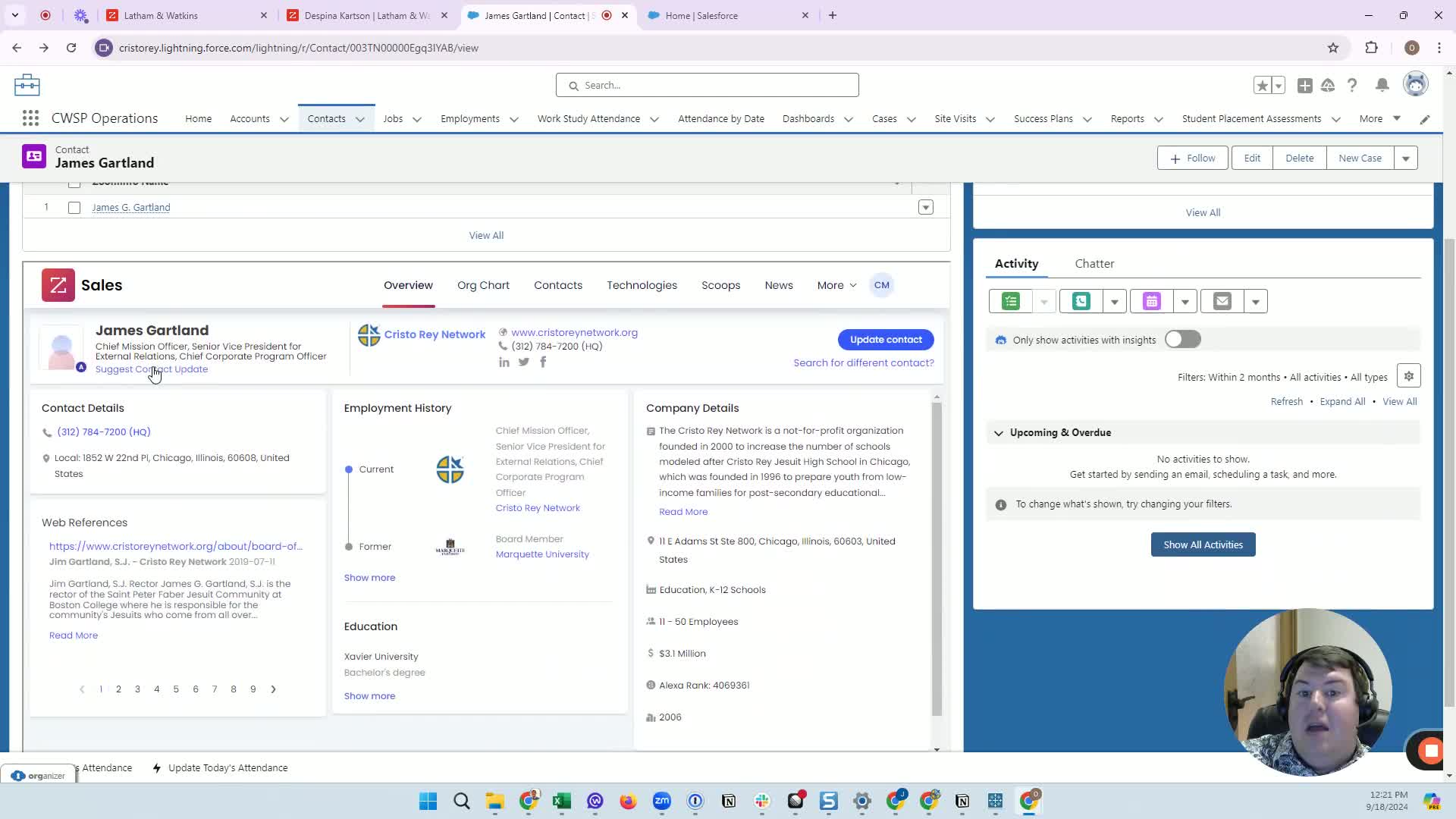
In the ZoomInfo component on the Salesforce record, locate the Update Contact button.
Click it to run a refresh and pull the latest available information from ZoomInfo.
Use this when you suspect the contact’s details may have changed since the last sync.
8. Use the ZoomInfo app and Visualforce page inside Salesforce 5:33
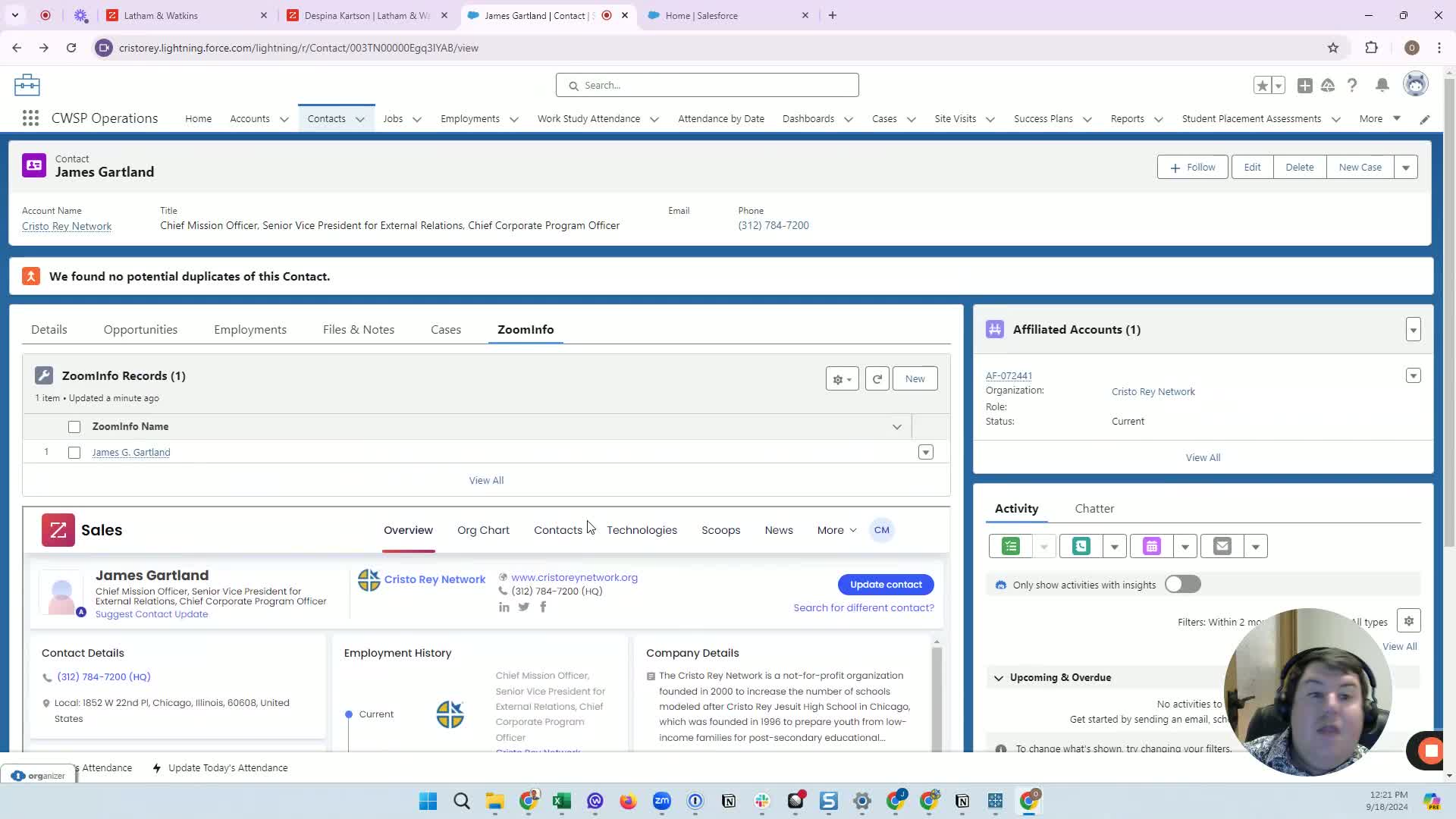
Access the ZoomInfo app from Salesforce if you need the integrated tools.
Use the standard Accounts and Contacts tabs as needed.
Open the ZoomInfo Visualforce page for full access to ZoomInfo without leaving Salesforce.
Perform searches, updates, and integrations directly from Salesforce when working in the embedded view.
Cautionary Notes
Always confirm the Salesforce environment is Production before connecting.
Do not export duplicates blindly; review duplicate warnings and existing records first.
Search for an existing account before creating a new one to avoid unnecessary duplicates.
Verify imported data in Salesforce, since some fields may not map automatically and some information may be incomplete or inaccurate.
If you are unsure whether to create, update, or skip a record, pause and confirm with your team or Salesforce owner.
Tips for Efficiency
Use the ZoomInfo record and Visualforce page in Salesforce to reduce switching between systems.
When a duplicate is detected, choose update existing record whenever possible to keep data clean.
Use the Update Contact button to refresh stale records instead of manually re-entering data.
Search Salesforce for an existing account before creating a new one to save cleanup time later.
Keep an eye on the confirmation pop-ups after each export so you can verify success immediately.
Was this article helpful?
That’s Great!
Thank you for your feedback
Sorry! We couldn't be helpful
Thank you for your feedback
Feedback sent
We appreciate your effort and will try to fix the article